User Management
Manage team access, assign roles, and control permissions in ConfigCobra using Azure Entra integration.
Log in to ConfigCobra
Access the ConfigCobra application using your credentials.
Log in at app.configcobra.com ↗ using your credentials.
Navigate to Team page
Go to the Team section to manage users and their roles.
Go to the Team page in the main navigation menu.
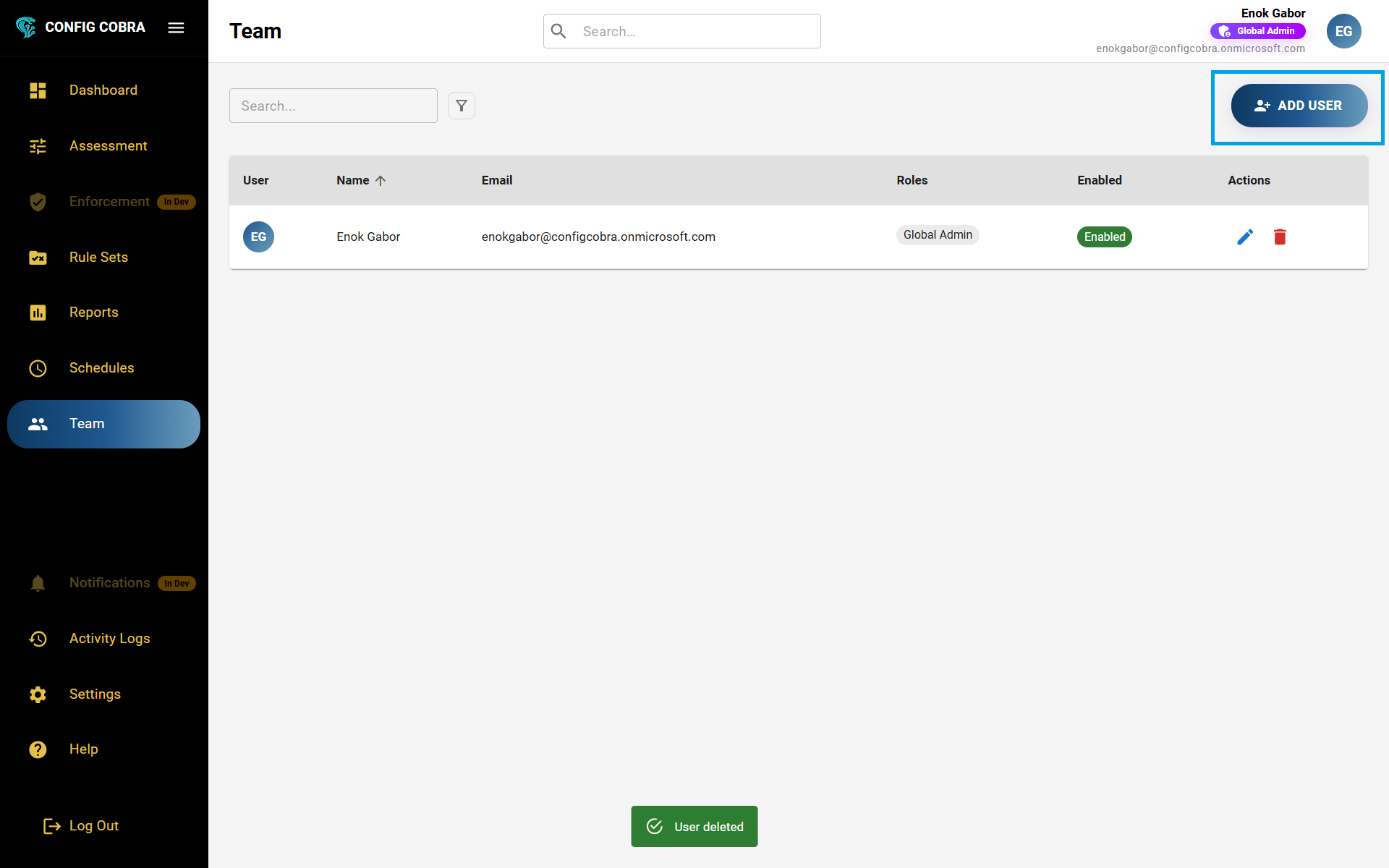
Add a new user
Add users from your subscribed tenant to the ConfigCobra team. Only users from the subscribed tenant can be added.
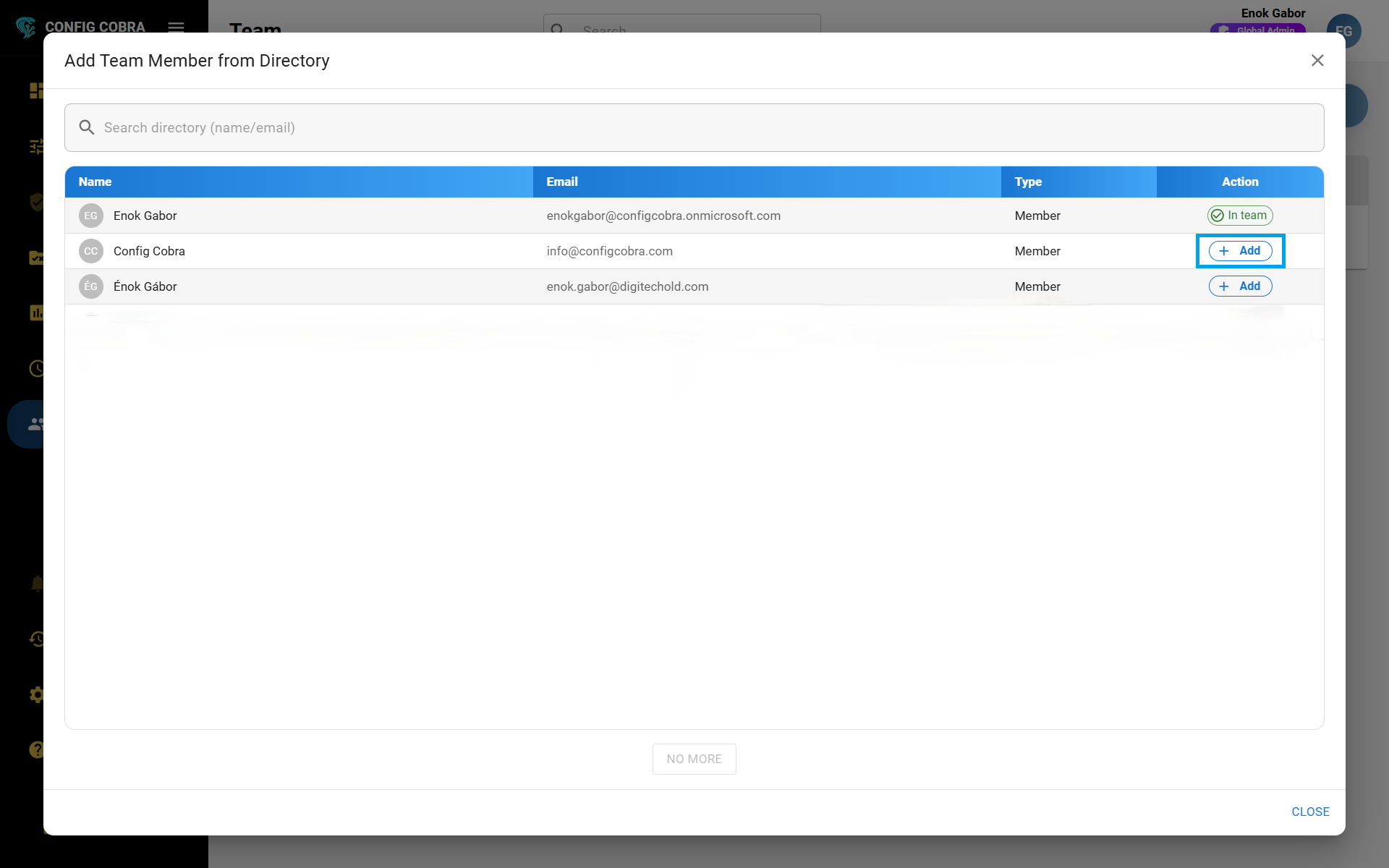
To add a user to your team:
- In the top right corner, select "Add User"
- Search for the desired user in your Azure Entra directory
- On the left side, press "Add"
- The button text changes to "In Team" and the user is added
iDefault role: New users are automatically assigned the Global Reader role by default. You can change this role in the actions menu.
Change user role
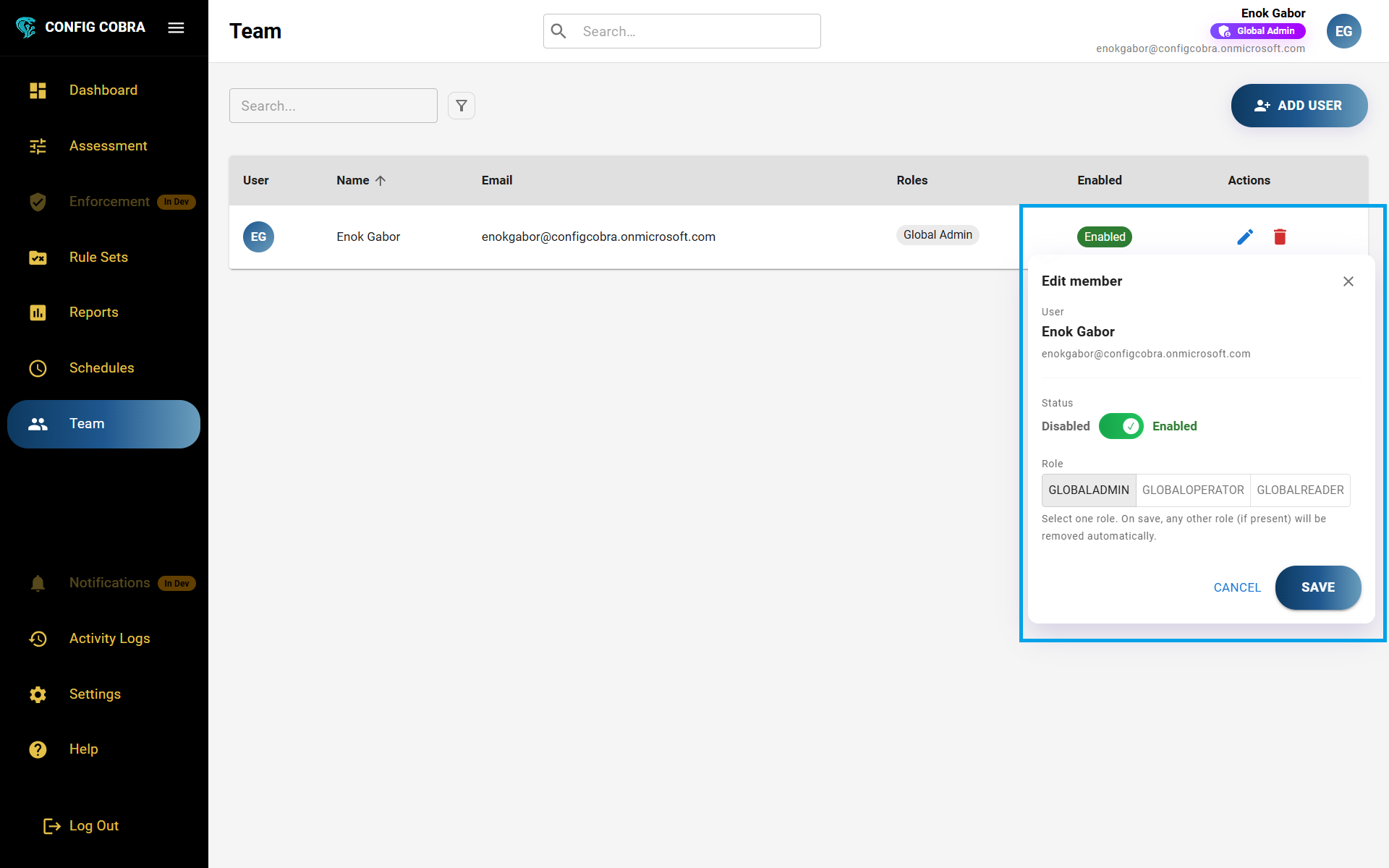
Update user permissions by changing their role. Choose from Global Admin, Global Operator, or Global Reader.
To change a user's role:
- In the actions menu, select the edit icon for the desired user
- You can select from: Global Admin, Global Operator, or Global Reader
- Select the desired role and press "Save"
Delete a user
Remove users from your ConfigCobra team when they no longer need access.
!In the actions menu, press the delete button for the desired user. The user will be removed from your ConfigCobra team. This action cannot be undone.
Email notifications
Administrators and affected users receive email notifications when user management actions occur.
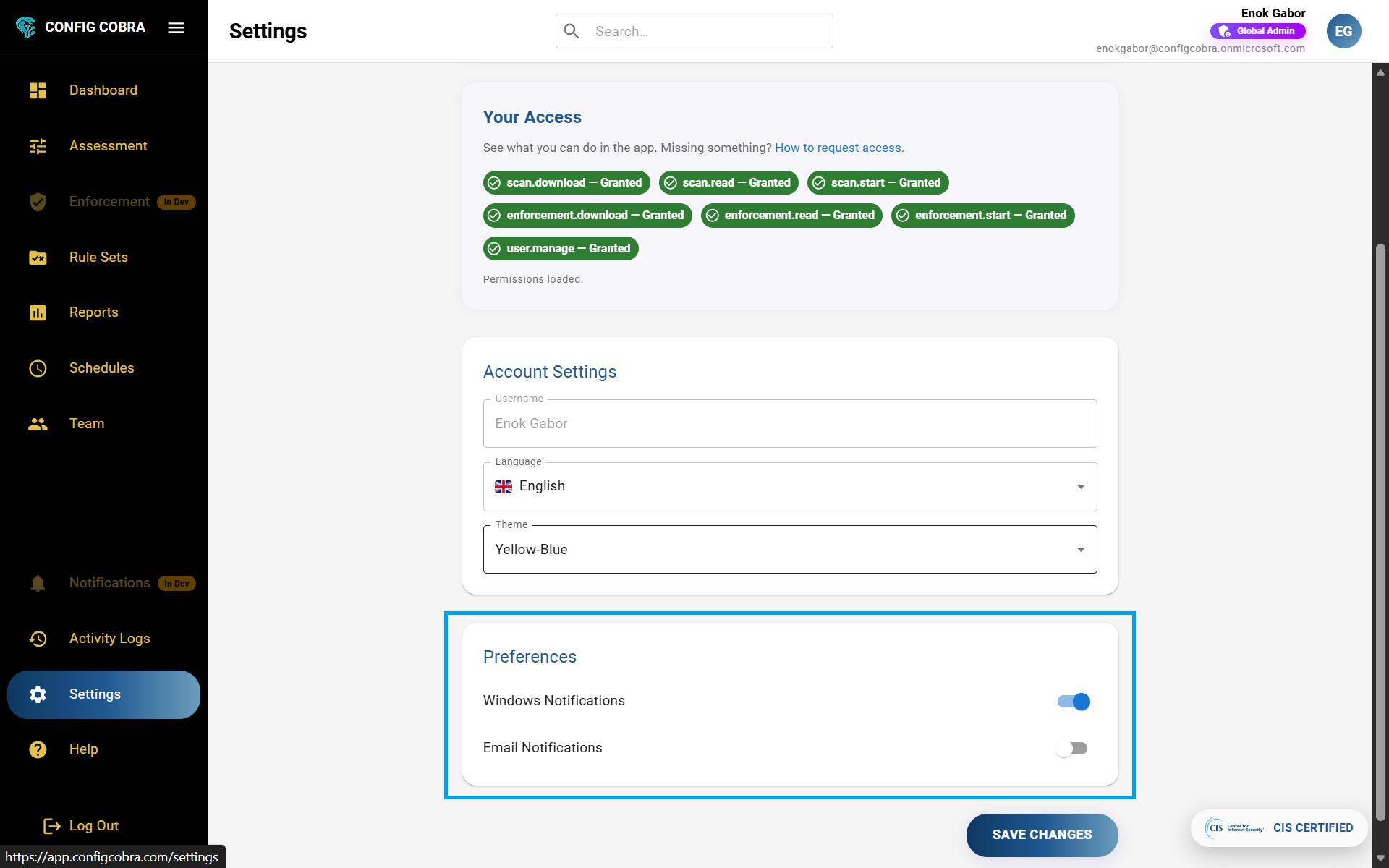
After adding, removing, or editing a user, each administrator receives a notification email. The affected user also receives an email notification about the change to their account or role. Learn more about notifications and how to configure your email preferences.
User Roles #
ConfigCobra has three roles with different permission levels:
- ✓Manage all assessments and reports
- ✓Configure system settings
- ✓Add, edit, and delete users
- ✓Manage rule sets and schedules
- ✓Access all tenant data
- ✓Run and schedule assessments
- ✓View and download reports
- ✓Create and manage rule sets
- ✓Configure assessment settings
- ✓View dashboard and activity logs
- ✓View assessments and results
- ✓Access reports (read-only)
- ✓View dashboard and metrics
- ✓Browse rule sets and configurations
- ✓Cannot run assessments or make changes