Running CIS Compliance Assessments
Learn how to configure and run automated CIS Benchmark assessments for Microsoft 365, view results, and understand compliance findings.
Open ConfigCobra App ↗Log in to ConfigCobra
Access the ConfigCobra application using your credentials.
Log in at app.configcobra.com ↗ using your credentials.
Navigate to Assessment tab
Go to the Assessment section in the main navigation.
Go to the Assessment tab in the main navigation menu.
Start a new assessment
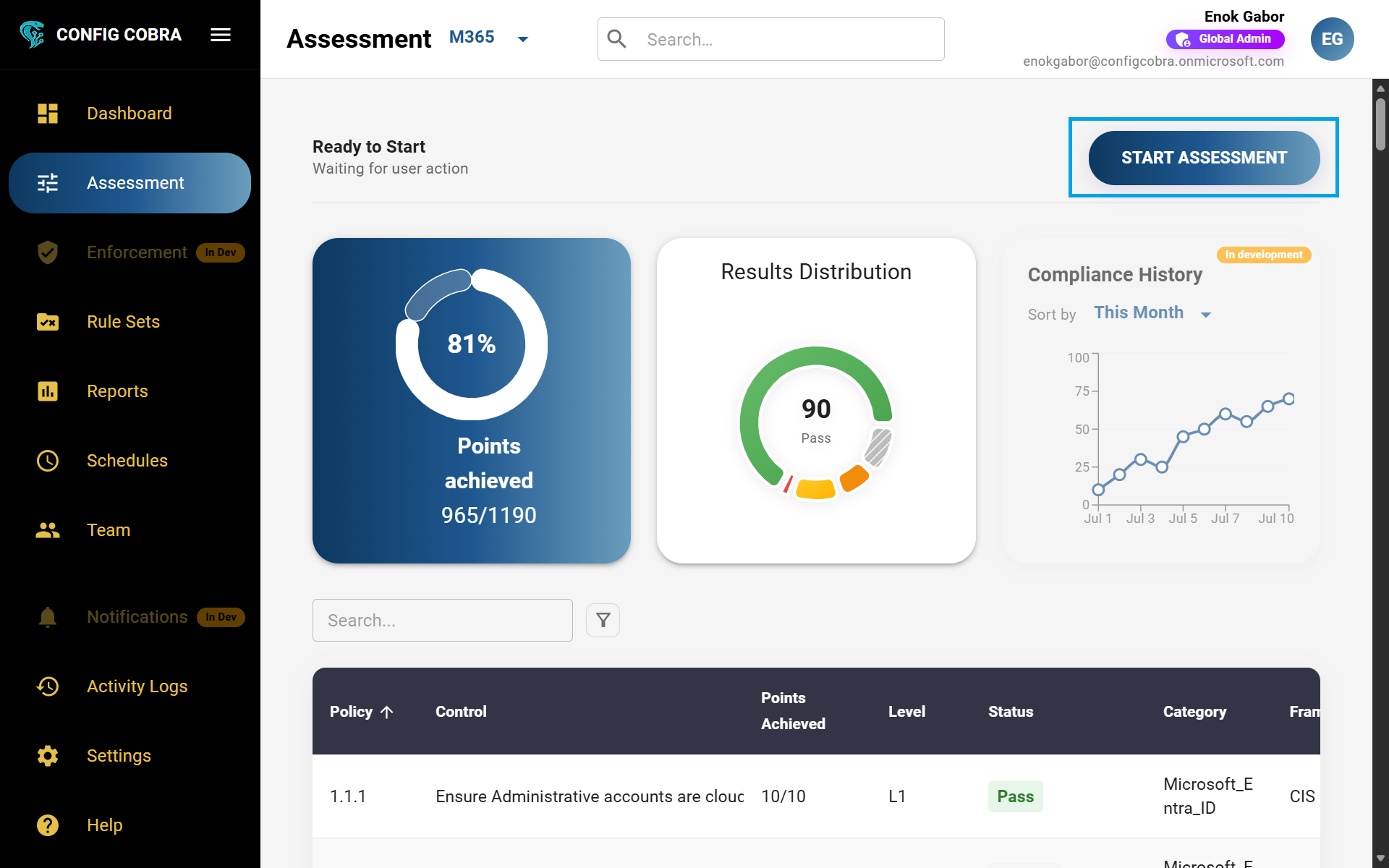
Click the Start Assessment button to begin a new compliance scan.
Press "Start Assessment" in the right corner of the Assessment page.
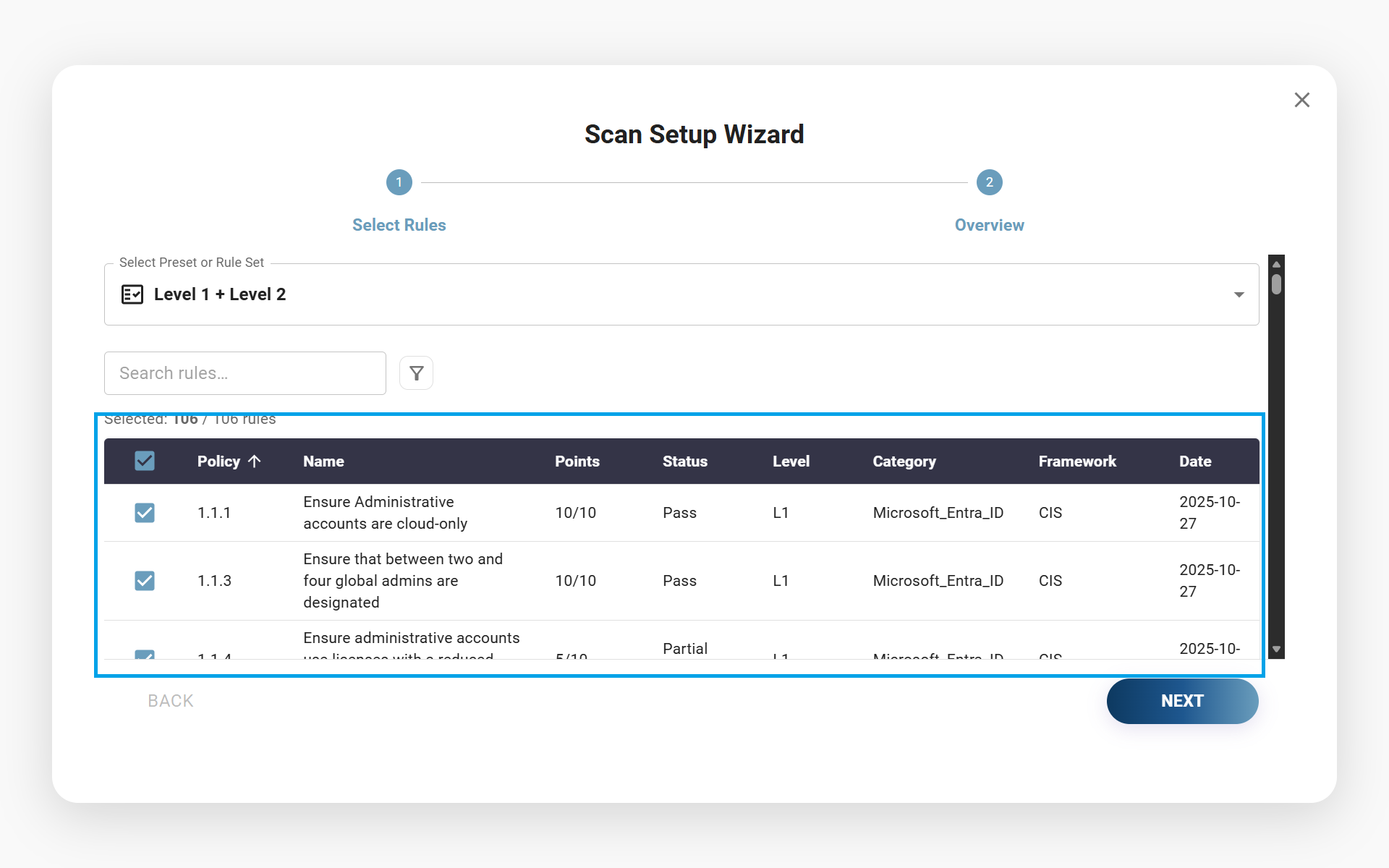
Select your benchmarks
Choose which CIS Benchmarks you want to assess. You can select from Level 1, Level 2, both, predefined rule sets, or customize by benchmark.
Select the desired benchmarks you want to assess. You can choose from:
- Level 1 – Essential security controls recommended for all systems
- Level 2 – Enhanced security controls for sensitive environments
- Both Level 1 and Level 2 benchmarks
- Predefined rule sets – Learn more about rule sets
- Custom selection by benchmark
Review and start scanning
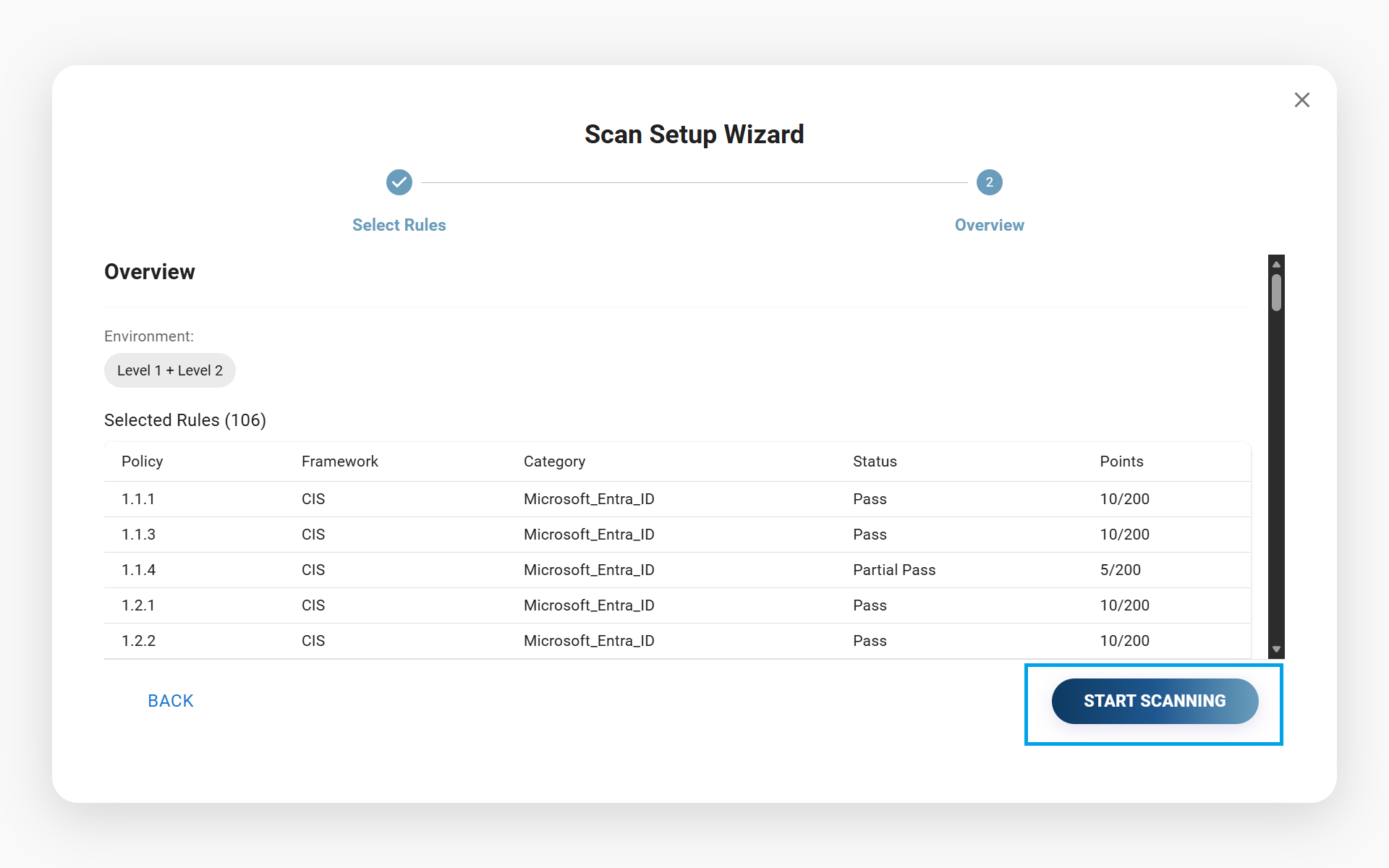
Review the overview of your selected assessment configuration, then start the scanning process.
You will see an Overview page of your scan configuration, showing:
- Selected benchmarks and rule sets
- Estimated scan duration
- Controls that will be assessed
iIf you are happy with the configuration, press START SCANNING to begin the assessment.
Wait for results
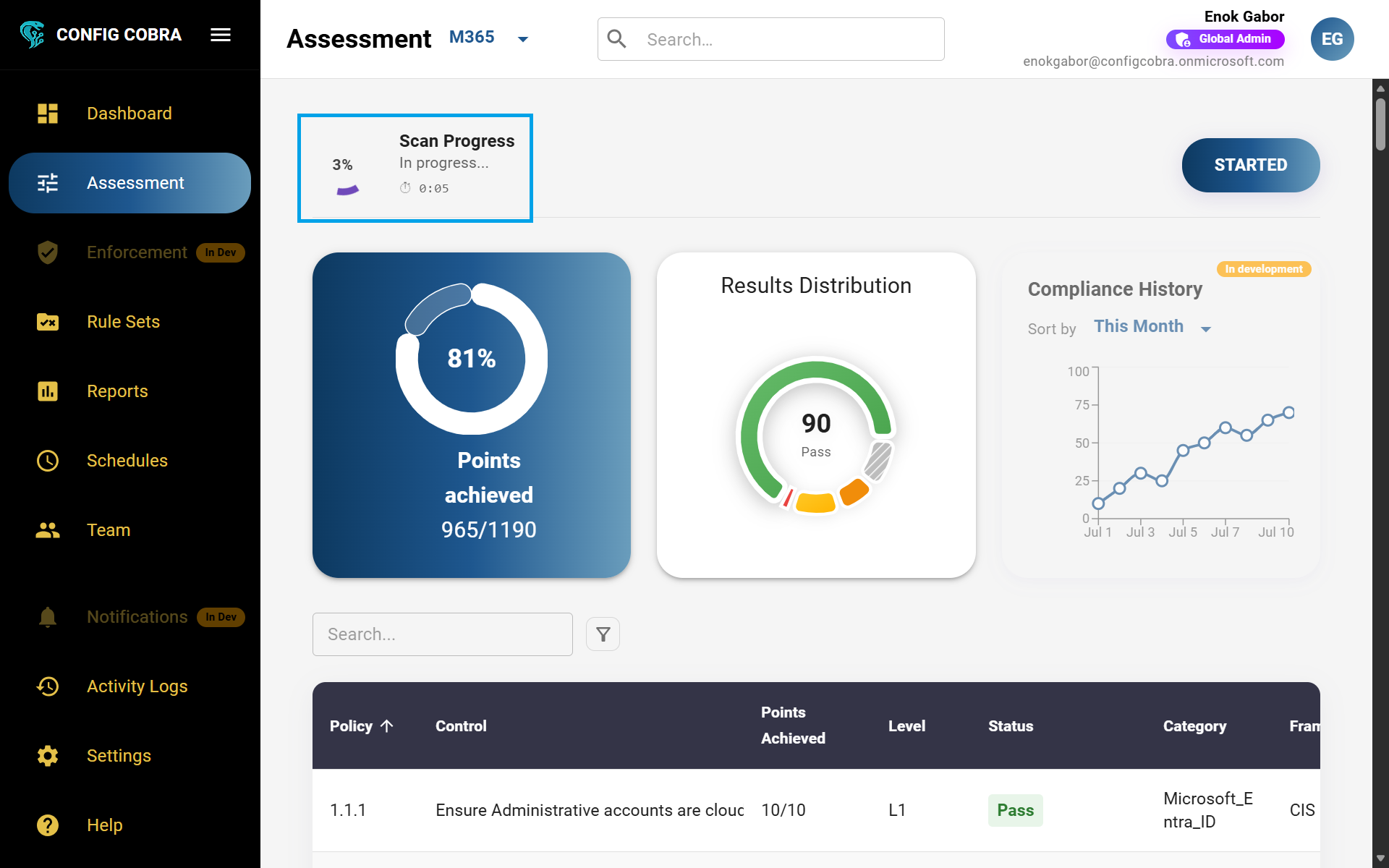
The assessment will run automatically. Results will be available after approximately 20–25 minutes, depending on your user count.
i20–25 minutes depending on your user count. Larger organizations may experience longer scan times.
Once complete, you will be able to see the results on the Assessment page as well as on the Reports page.
Understanding Assessment Results #
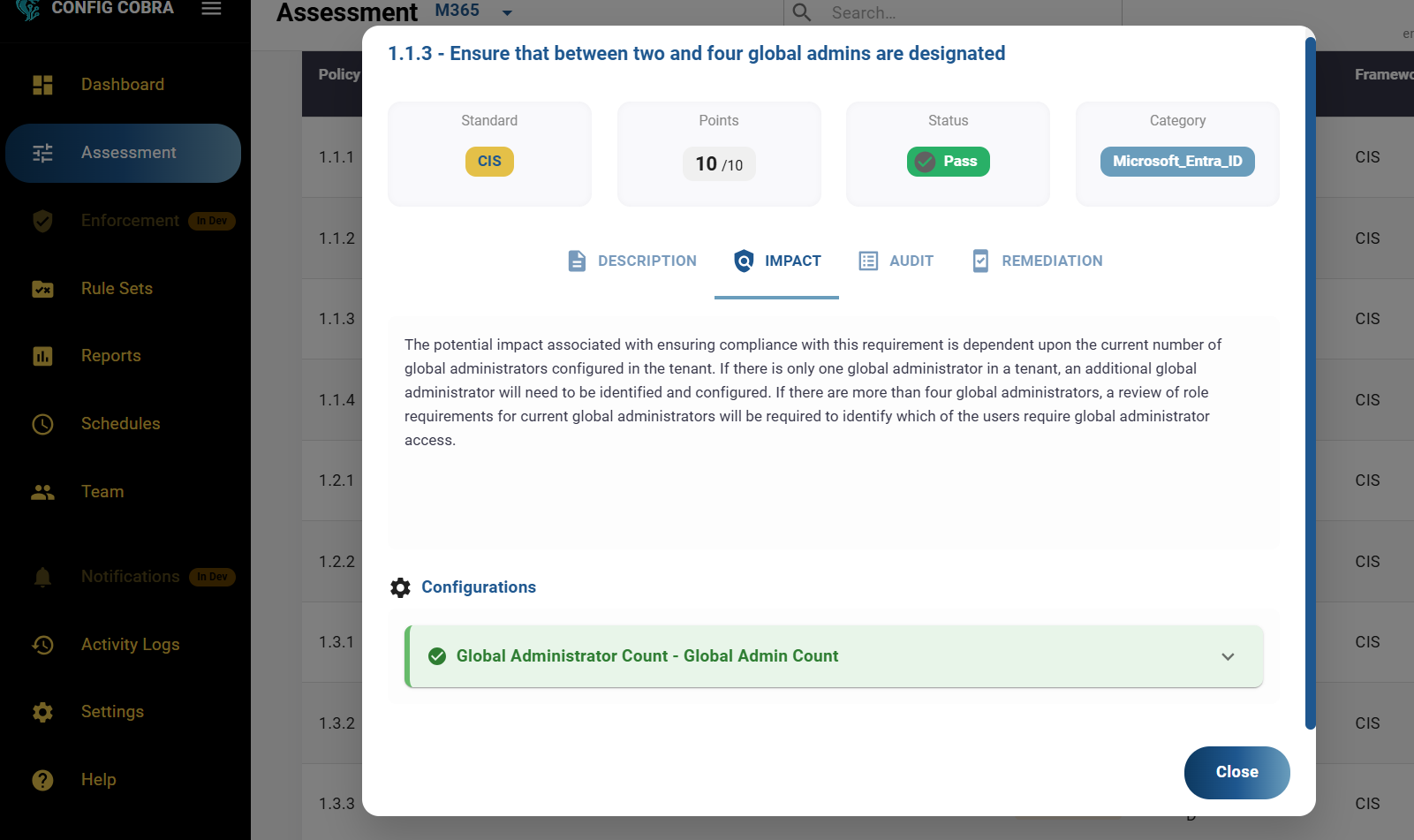
After an assessment is complete, by clicking on each benchmark you can see detailed information including:
Assessment History
On the Assessment page, you can only see your last assessment at any given time. To view historical assessments and compare results over time, visit the Reports page.