Getting Started with ConfigCobra
Onboard your Microsoft 365 tenant with ConfigCobra in four short steps — from a first message to a running CIS assessment.
Contact us to onboard →Onboarding is handled by our team.
ConfigCobra is no longer listed on Microsoft AppSource — subscriptions are provisioned directly through a short Contact-Us onboarding. To get started you'll need your Microsoft 365 Tenant ID.
Important License Requirements
CIS Benchmarks are based on Microsoft 365 E3 and E5 licenses. Although we can scan some controls without them, having some kind of Microsoft Defender license (Defender for Office 365, Defender for Endpoint, or Microsoft Defender XDR) is a minimum requirement for full functionality.
Contact ConfigCobra
Go to configcobra.com/contact (or email info@configcobra.com) and include:
- Your Microsoft 365 Tenant ID — the GUID of the tenant you want to assess
- The number of licensed Microsoft 365 users in that tenant (excluding guest users) — see how to check →
- The plan you're interested in (Small / Medium / Large / Enterprise, MSP Assessment License, or free trial)
How to find your Tenant ID: sign in to the Microsoft Entra admin center ↗, go to Identity → Overview, and copy the Tenant ID field. Full walkthrough: Microsoft Learn — How to find your tenant ID ↗.
Log in to ConfigCobra
Head to app.configcobra.com ↗ and sign in with your Microsoft 365 account using Single Sign-On.
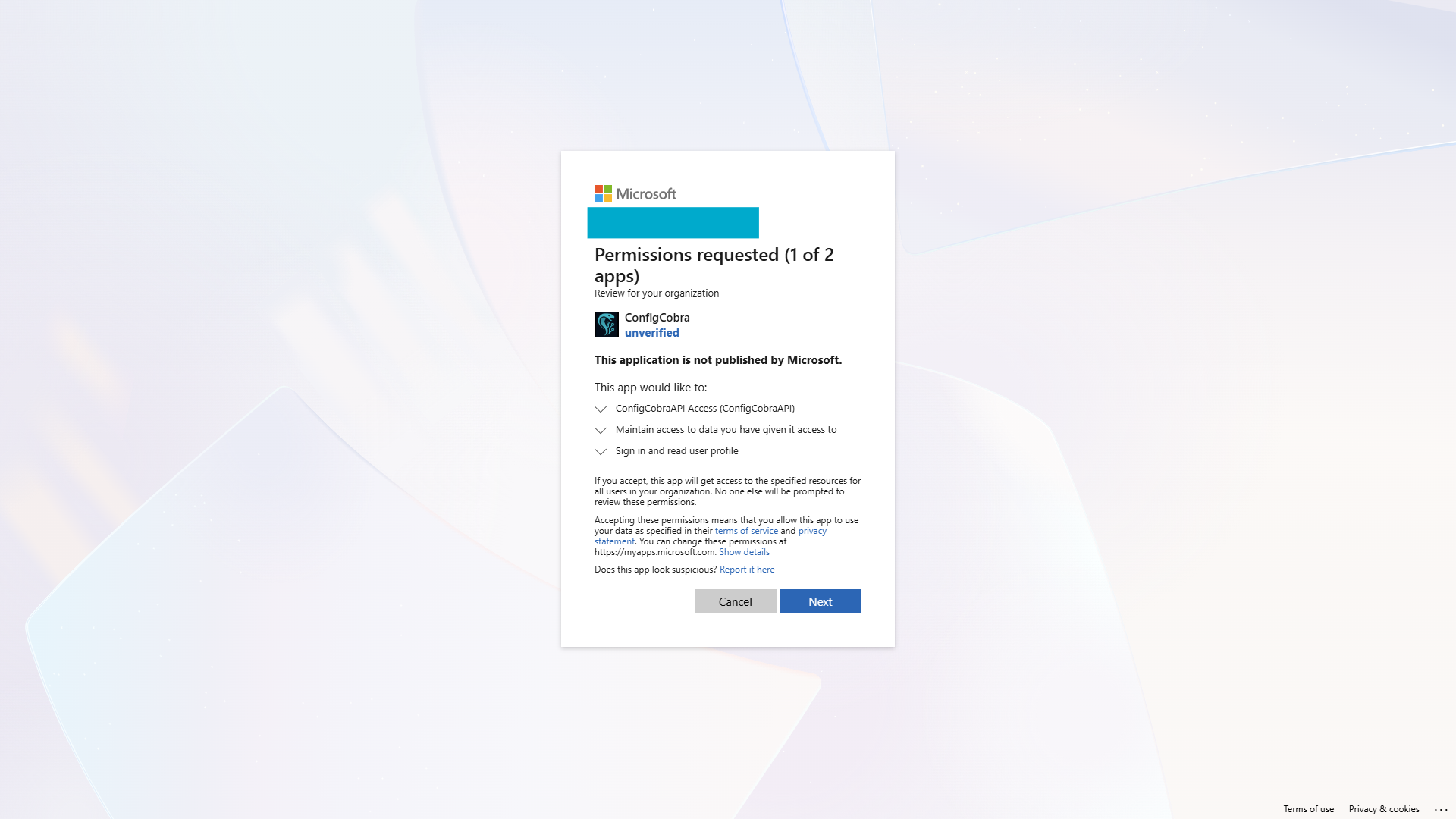
Accept admin consent
Accept all the permissions on the admin consent page. This is required for ConfigCobra to read your Microsoft 365 configuration through Microsoft Graph (read-only — no writes, no agents installed).
Grant tenant permissions
Admin consent covers the Microsoft Graph checks. For Exchange Online, Microsoft Purview and Microsoft Fabric, your administrator also assigns the Global Reader role to the ConfigCobraAPI app and enables read-only Fabric admin API access for it. If you are not a Global Administrator, send the guide to your administrator.
You're ready to do your first assessment!
Once you've completed all the steps above, you can navigate to the Assessment page and start running your first CIS compliance scan. ConfigCobra will automatically check your Microsoft 365 configurations against CIS Benchmark standards.